Workspaces are used in Betterview to allow administrators to assign different groups of property profiles to users; users can switch between workspaces as needed.
Adding IdP groups to a workspace
- Select Account, Workspaces.
- From the All workspaces tab, locate the workspace to which you want to add an IdP group.
- Click the Ellipsis button. A menu is displayed.

- Select Add groups to workspace. The Add SSO IdP group to workspace dialog is displayed.
- Complete the following fields:
- SSO IdP: This is the name of your SSO provider.
- IdP Group: Type the name of the IdP group you want to add to the workspace. An IdP group is typically defined by your IT systems administrator.
NOTE: The IdP group name must be entered exactly as it is sent from your Identity Provider. - Role: Select the permission level for the IdP group from the following:
- Create - Allows users/groups to create/register new properties within their workspace.
- Edit - Allows users to edit properties that already exist in their workspace.
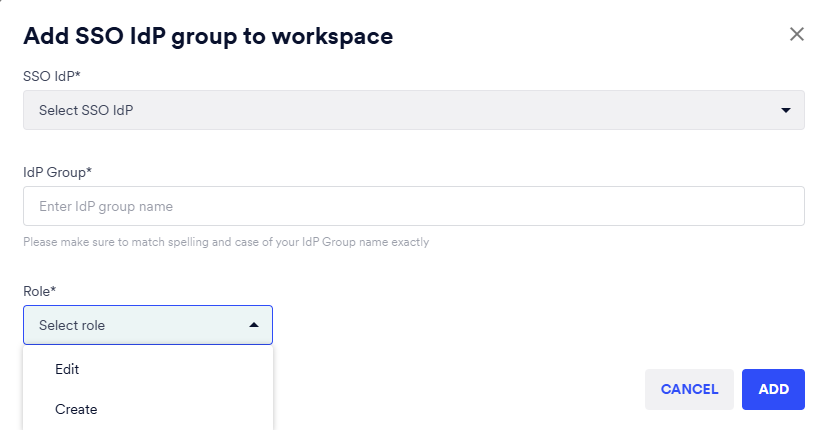
- Click ADD. The IdP group is added to the workspace.
Internal IdP group
A default group named nm-internal-default is created in MyAccount in addition to your IdP groups.
- Assigning the nm-internal-default group to a workspace grants the workspace role configured for the group to all users authenticating via the selected IdP, in addition to any workspace roles mapped from groups provided by the IdP.
- The group can be assigned to multiple workspaces.
- Do not create a group with the name nm-internal-default in your IdP.